
The Trips function in the OBDLink® app is linked to the Logs function. Logging is enabled in the OBDLink app by default. Follow the steps in this article to view trip data for your vehicle.
Note: We recently updated the OBDLink app and made improvements to its features and how it looks. The icons on the app's home screen now have a yellow accent instead of blue (iOS) and green (Android) accents. This article matches the updated app’s screens and features. Download the latest version of the OBDLink app from the App Store (iOS) or Google Play (Android) to take advantage of the updated app's features and performance.
Every time the app connects to your vehicle, it captures log data that can be viewed in several ways:
- Trip view
- Map view (accessed using the Maps function)
- File view and CSV file (accessed using the Logs function)
By default, the OBDLink app enables logging for certain vehicle PIDs (vehicle speed, longitude, and latitude), so you can view log data even if you haven’t configured any settings.
You can use the Trips functionality in the OBDLink app whether your vehicle is connected or not. If the app is not connected to your vehicle, you can view data from previously stored trips.
View trip information
Before you begin, be sure to:
- Start your vehicle.
- On your phone/tablet, open the OBDLink app and connect to your OBDLink adapter.
- Make sure your phone/tablet is not streaming to any other Bluetooth/BLE devices.
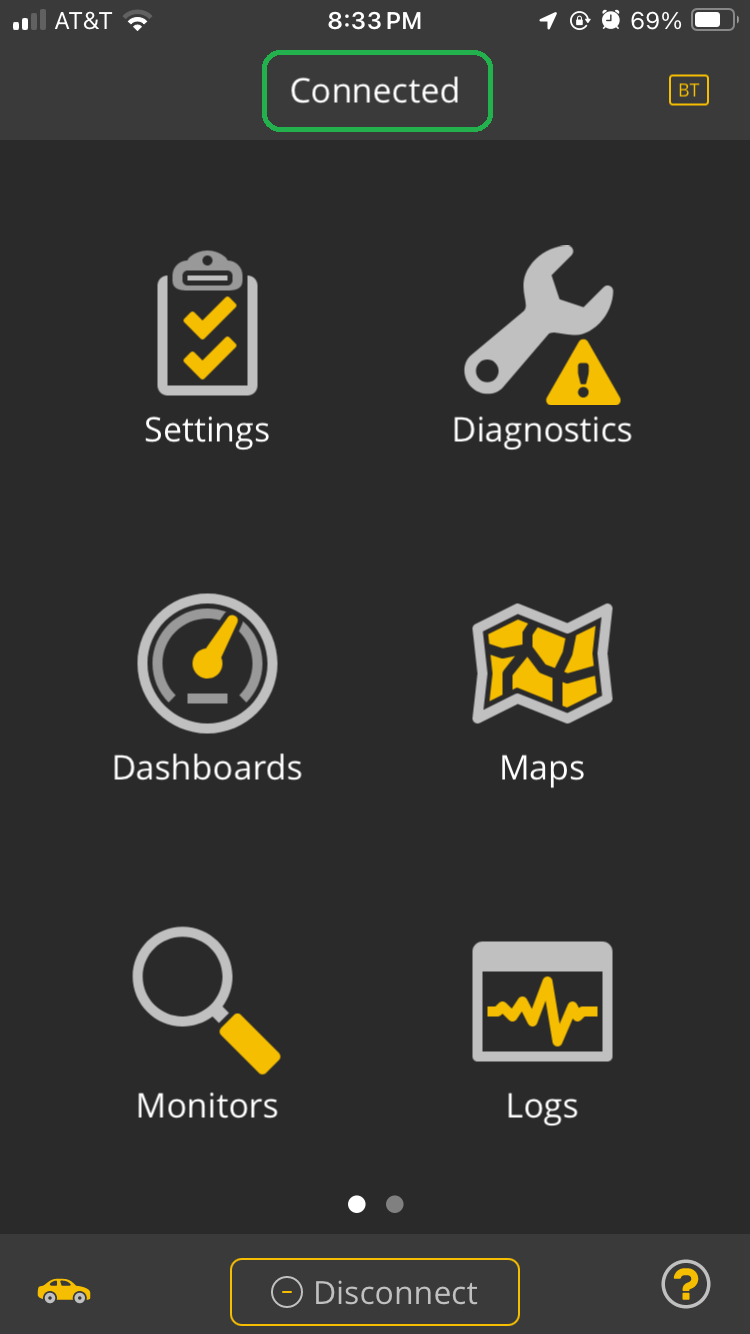
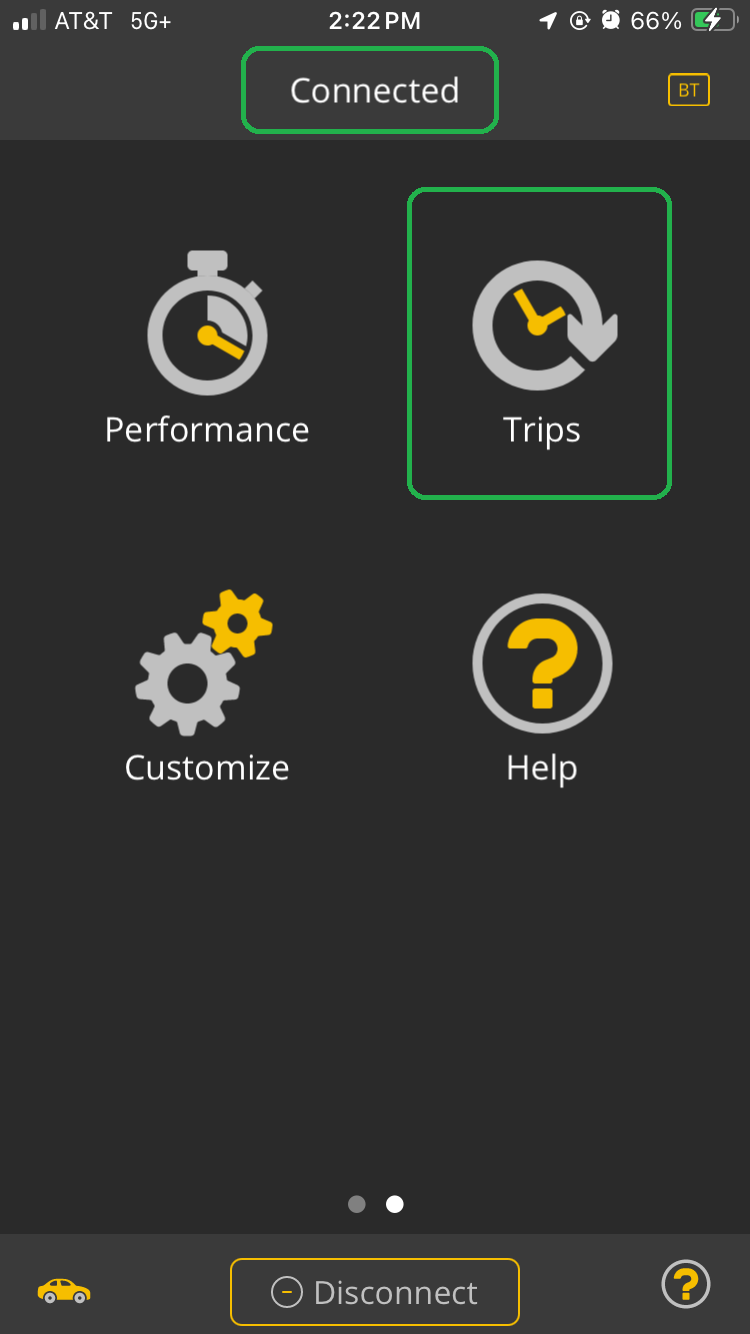
- Confirm that your phone/tablet is Connected to the OBDLink adapter. Swipe to access the second page of icons.
iOS Android - Tap the Trips icon on the second page.
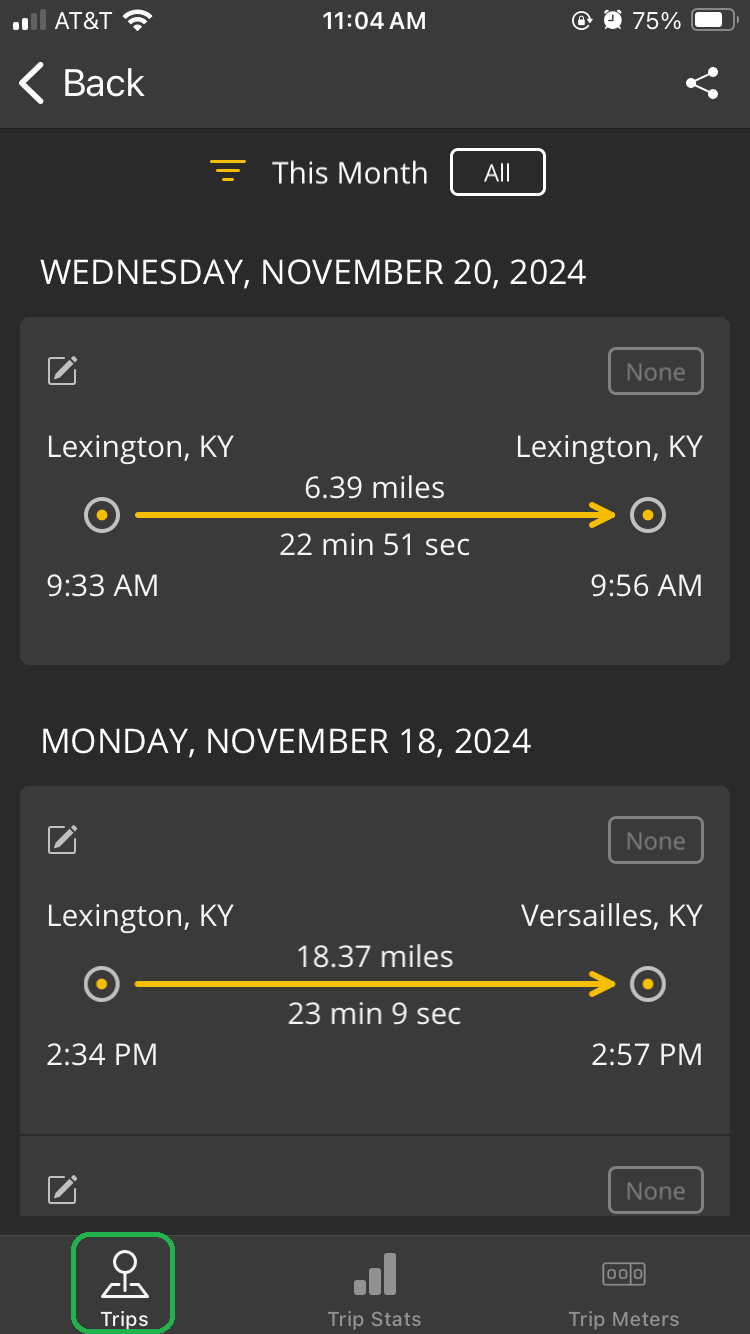
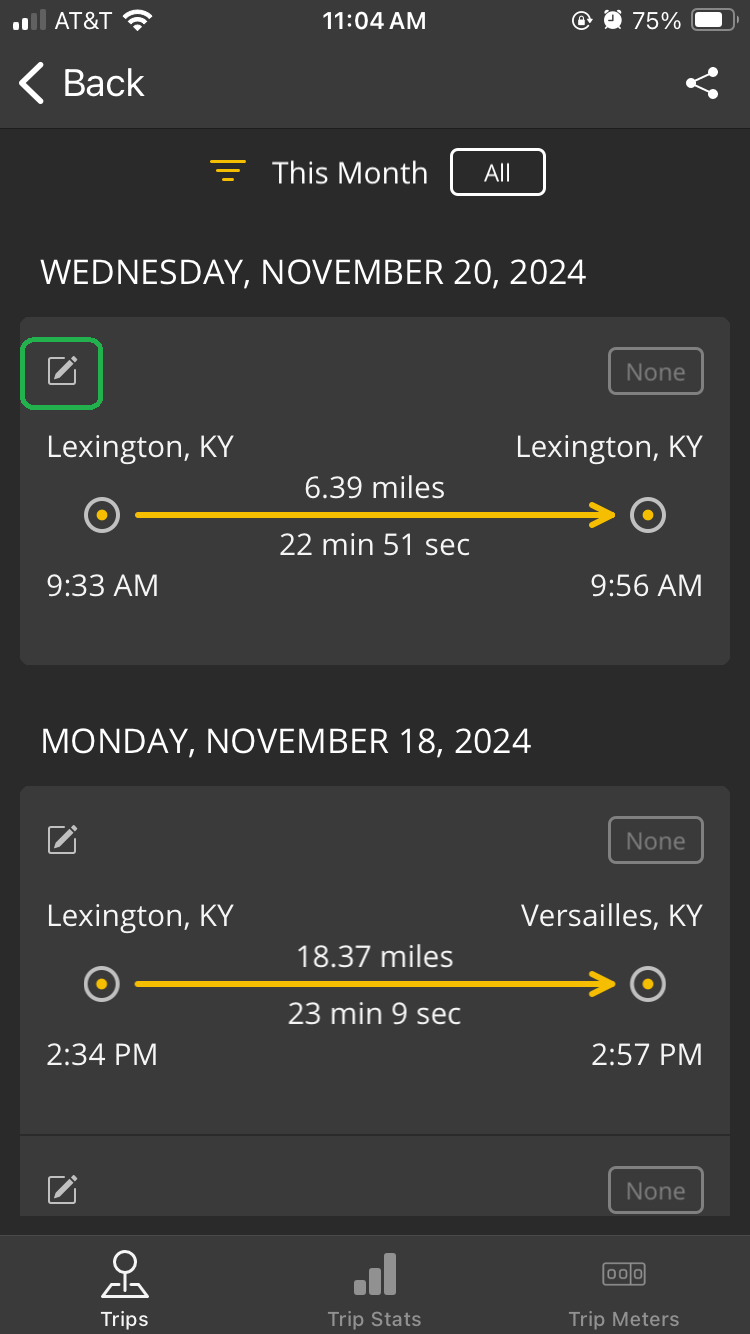
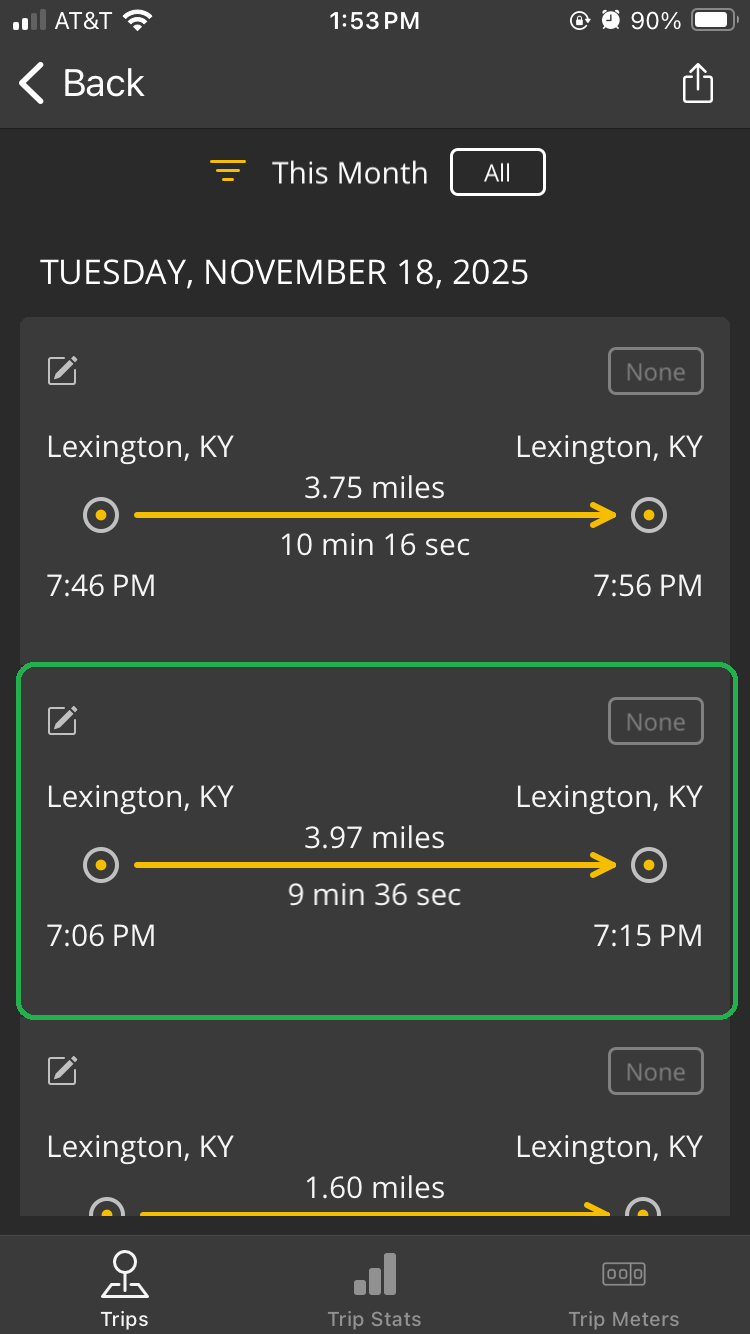
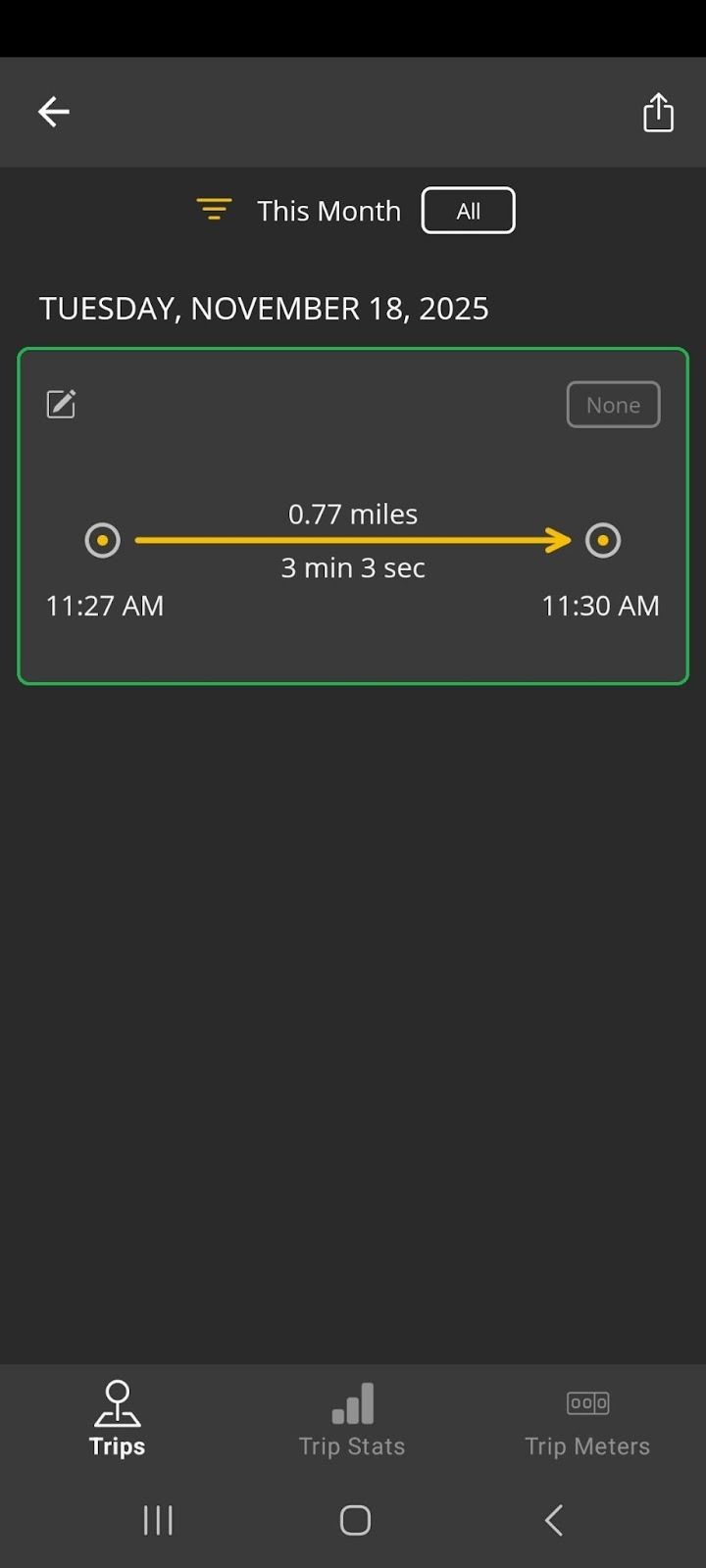
- The Trips tab is shown by default. You will see a list of completed trips.
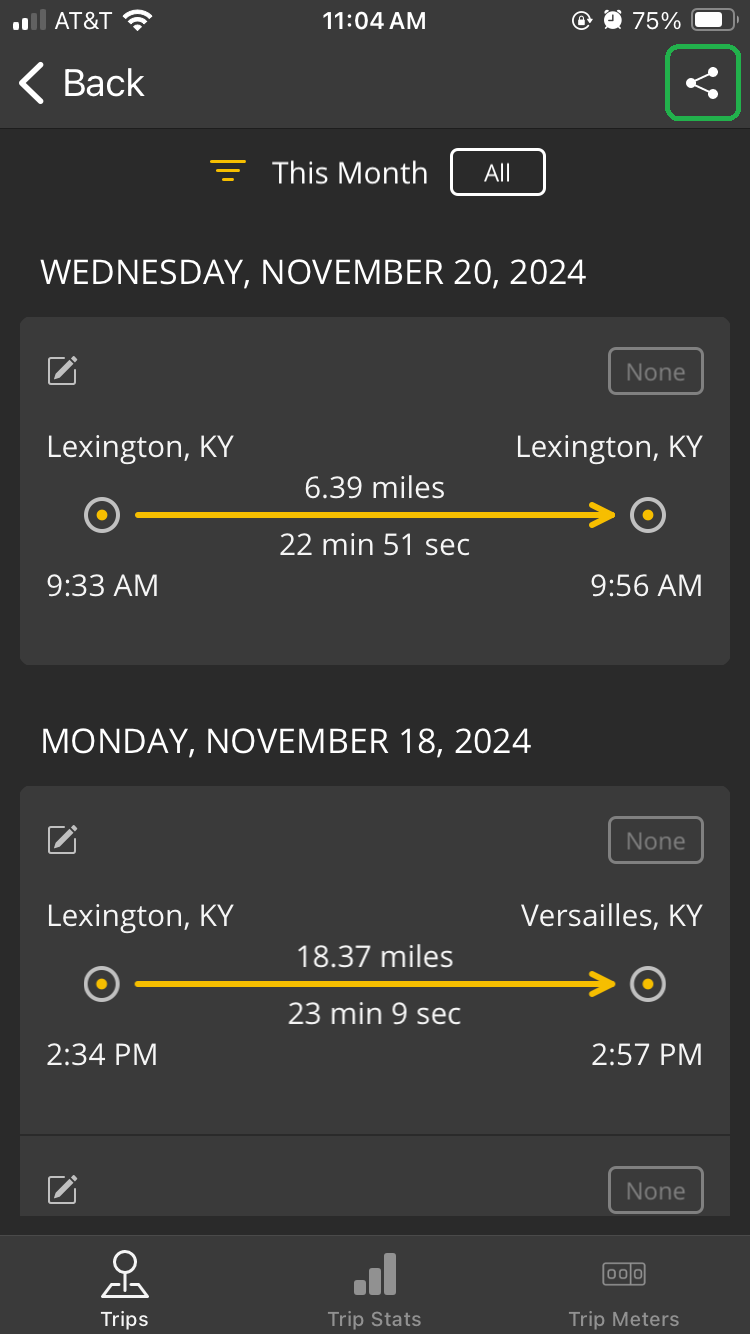
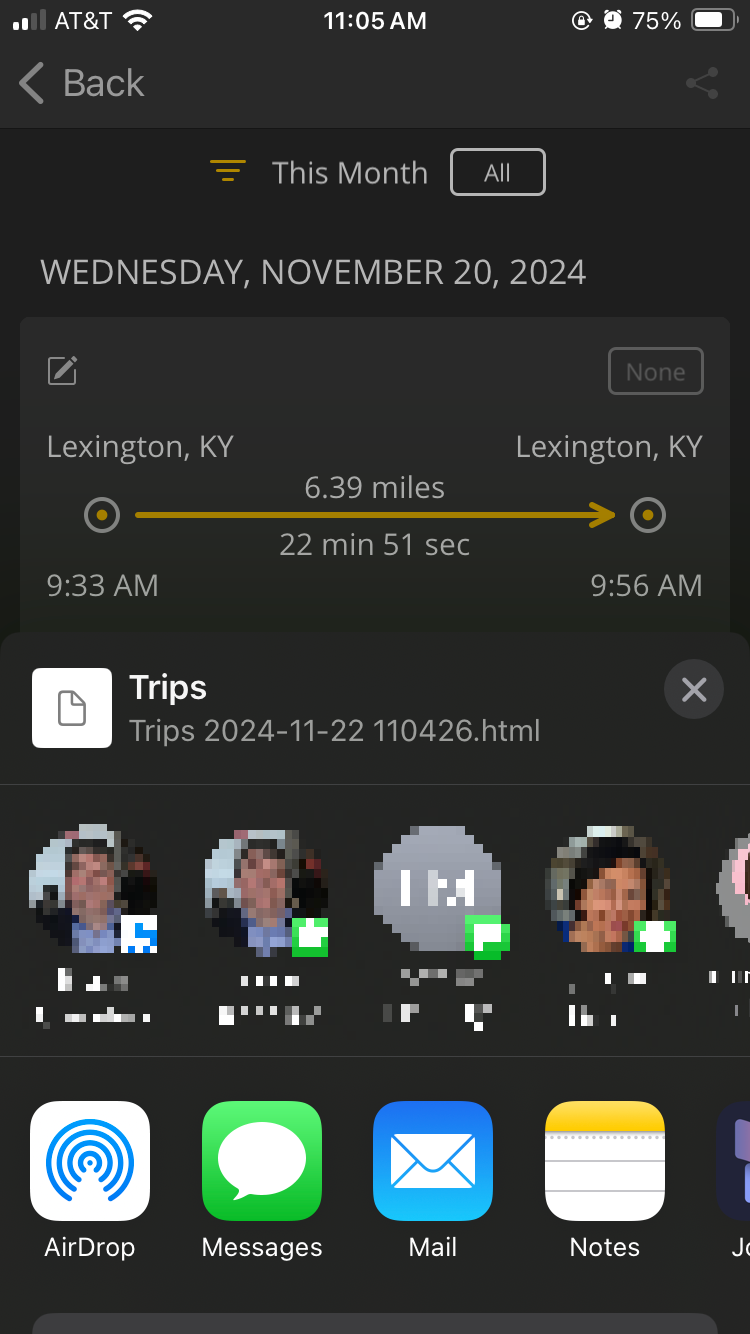
- Tap the Share icon in the upper right corner to send the trip list in HTML format to another app, such as email or a spreadsheet app.
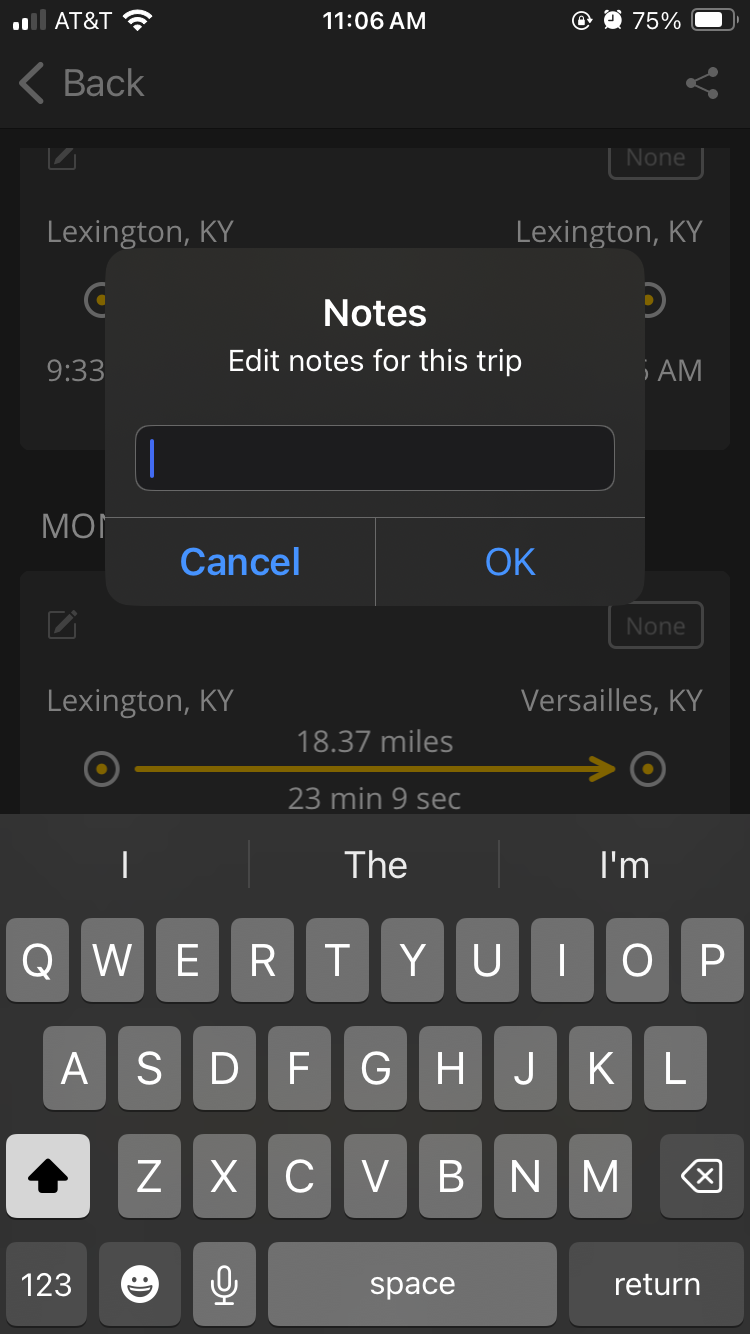
- Tap the Notes icon (highlighted) to add notes to a trip. Enter your text in the dialog, then tap OK.
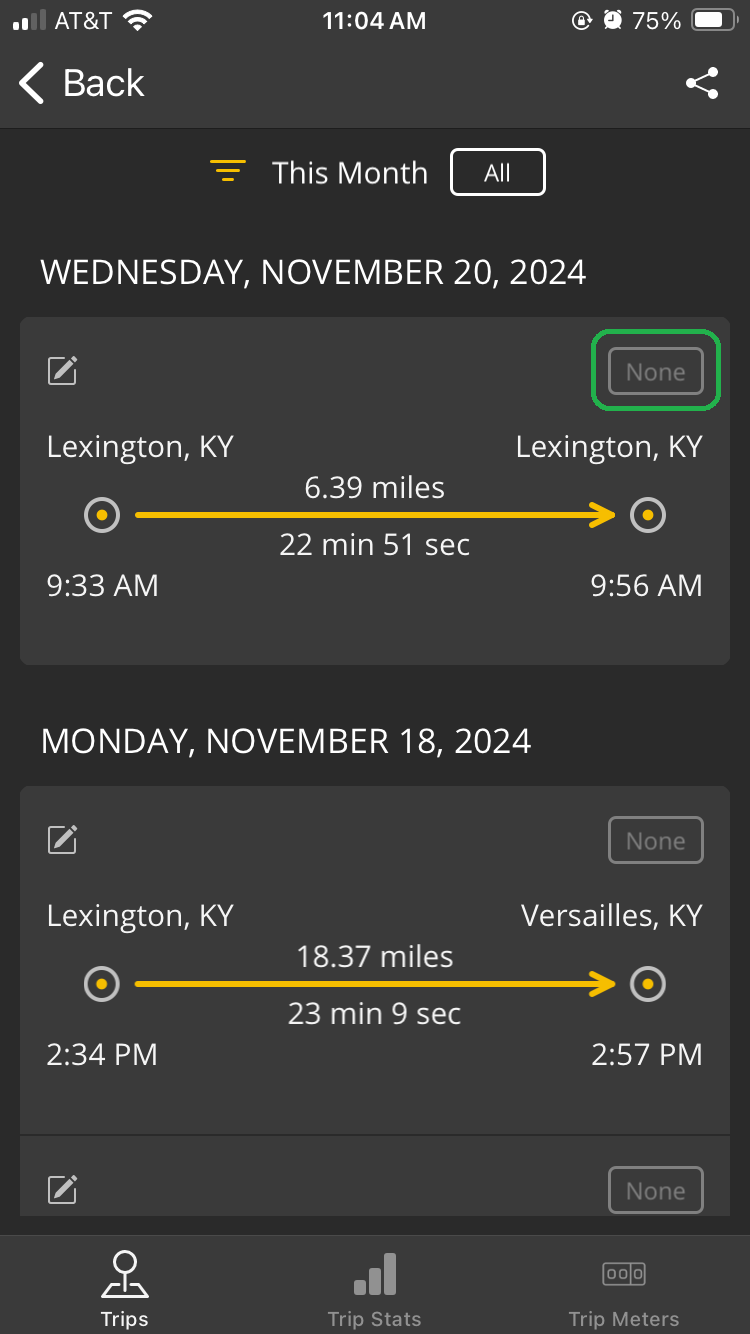
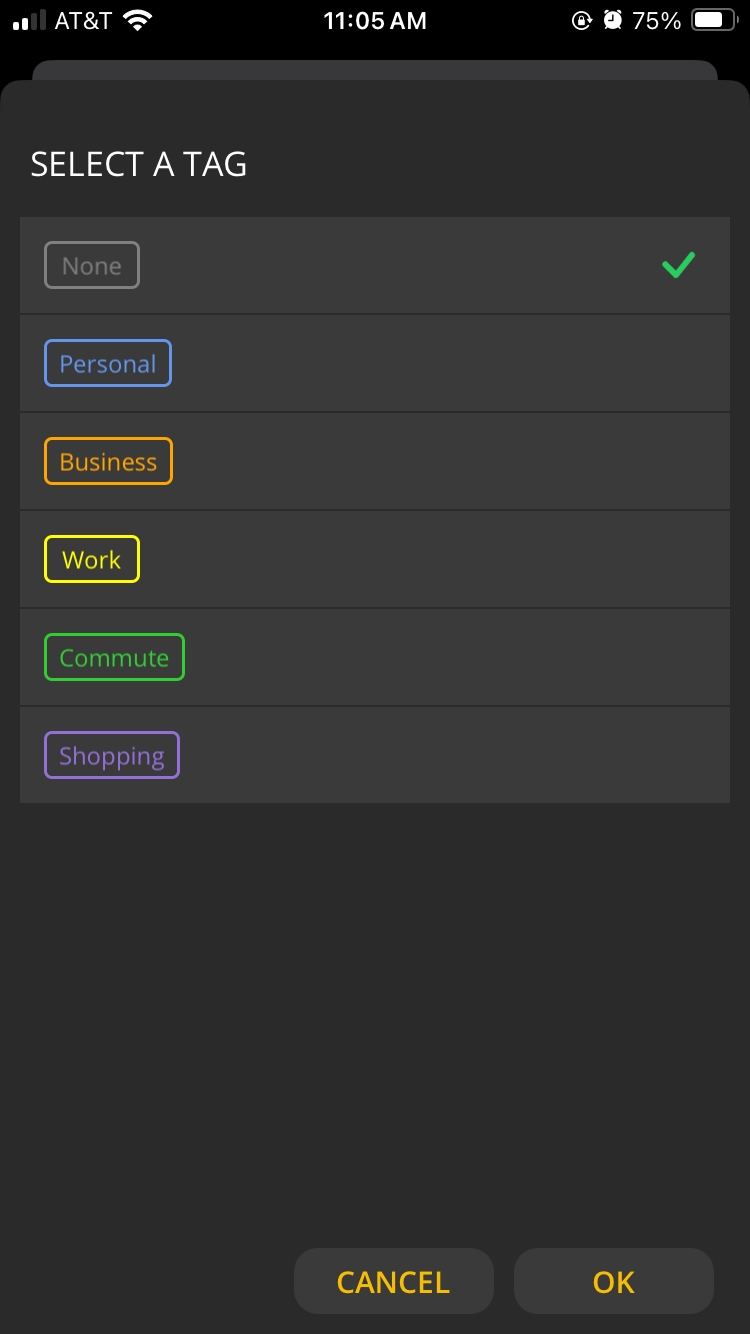
- Tap the Tag icon (highlighted) to add an identifier to a trip. Tap the Tag you want, then tap OK.
You can choose from a list of tags, including Personal, Work, Commute, and others.
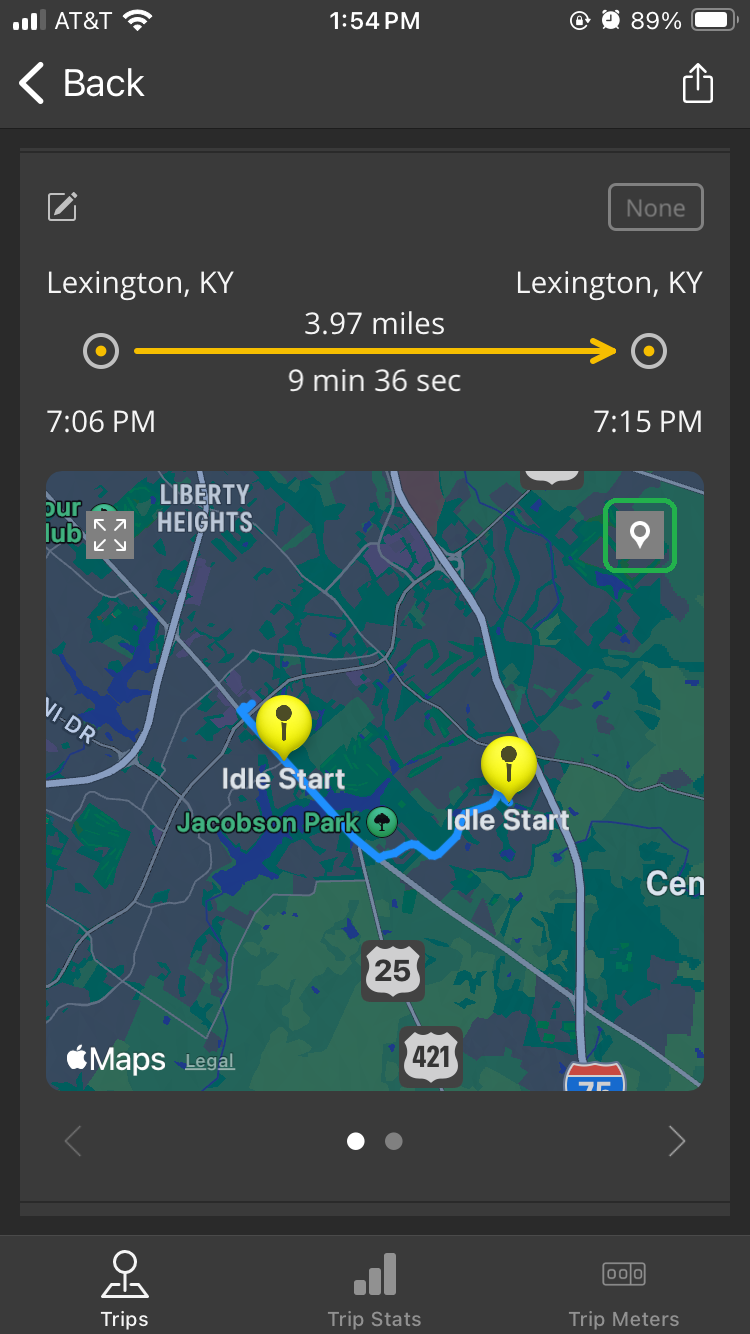
To open a trip, tap the details area (highlighted) for the trip you want to view.
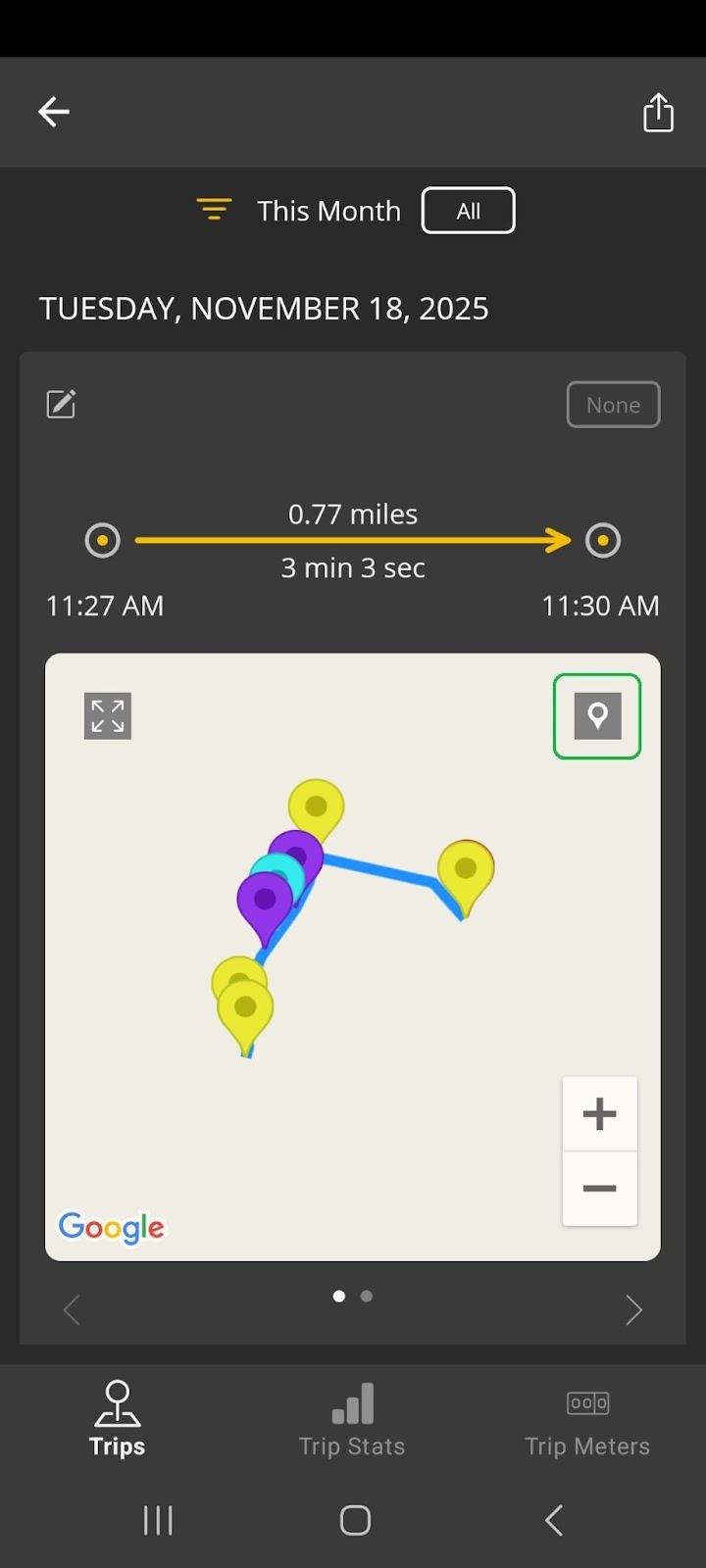
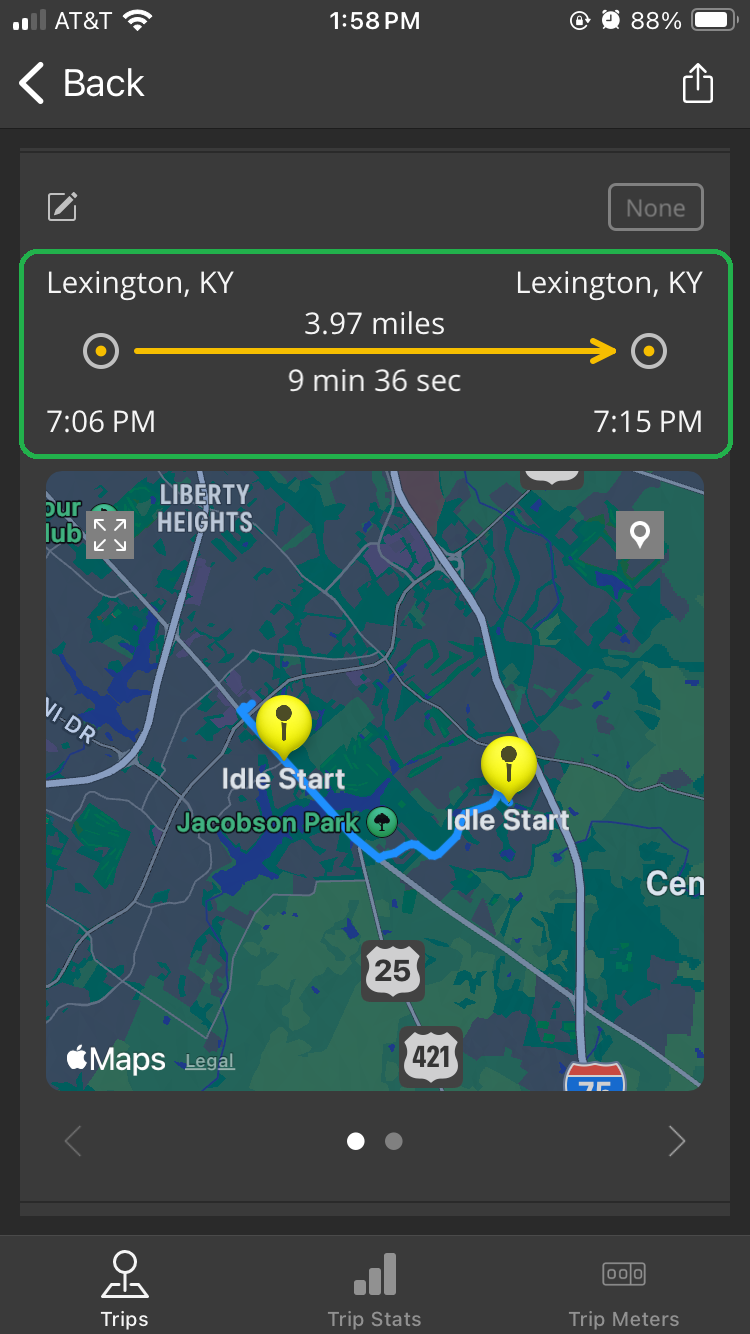
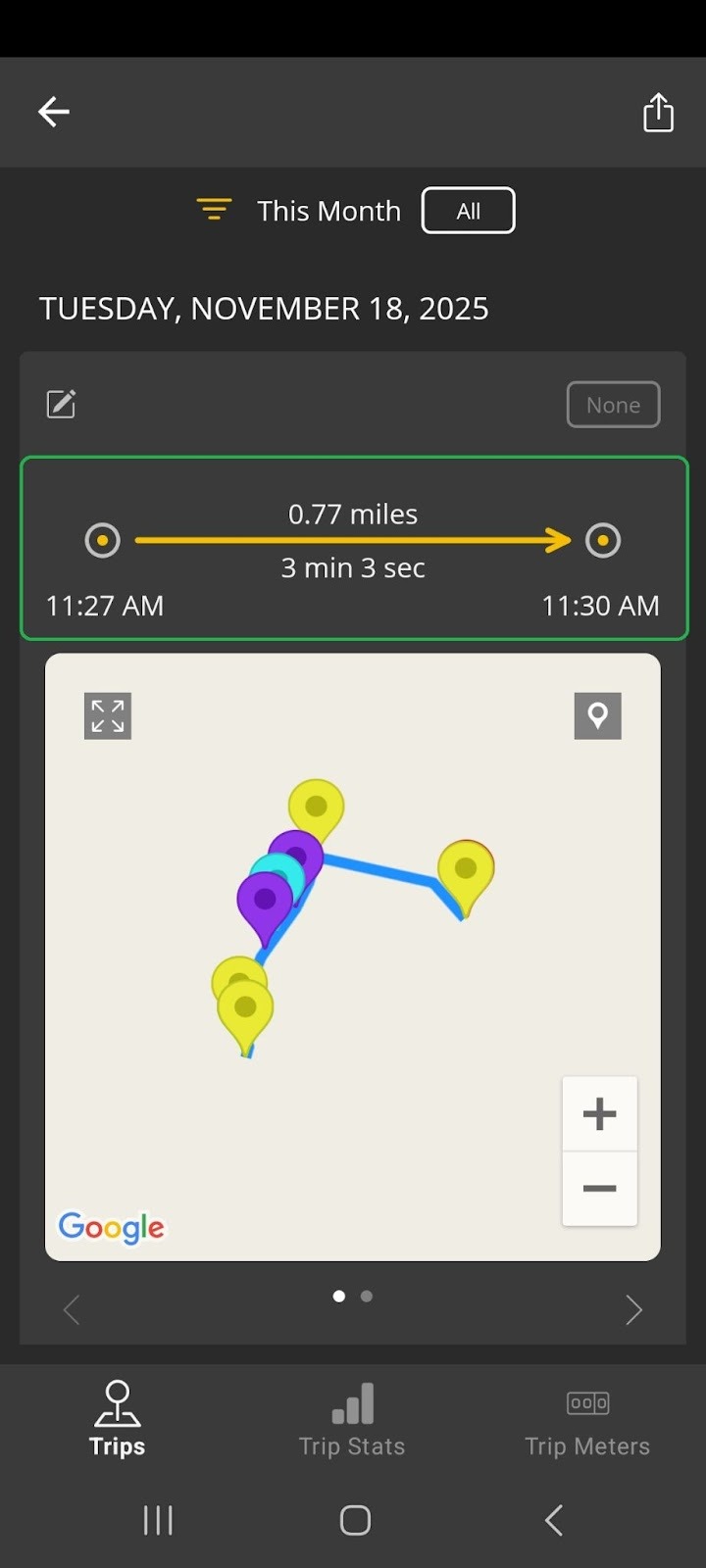
You will see trip details and a map of the trip.
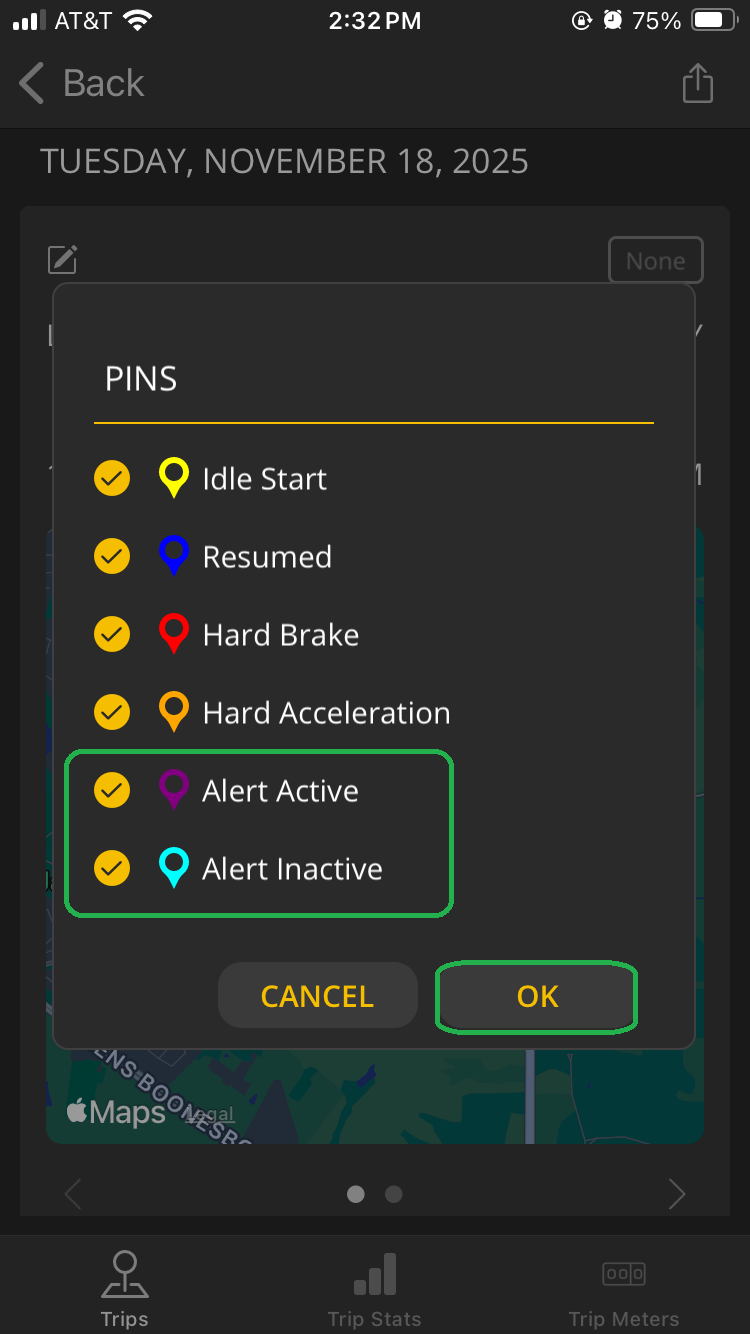
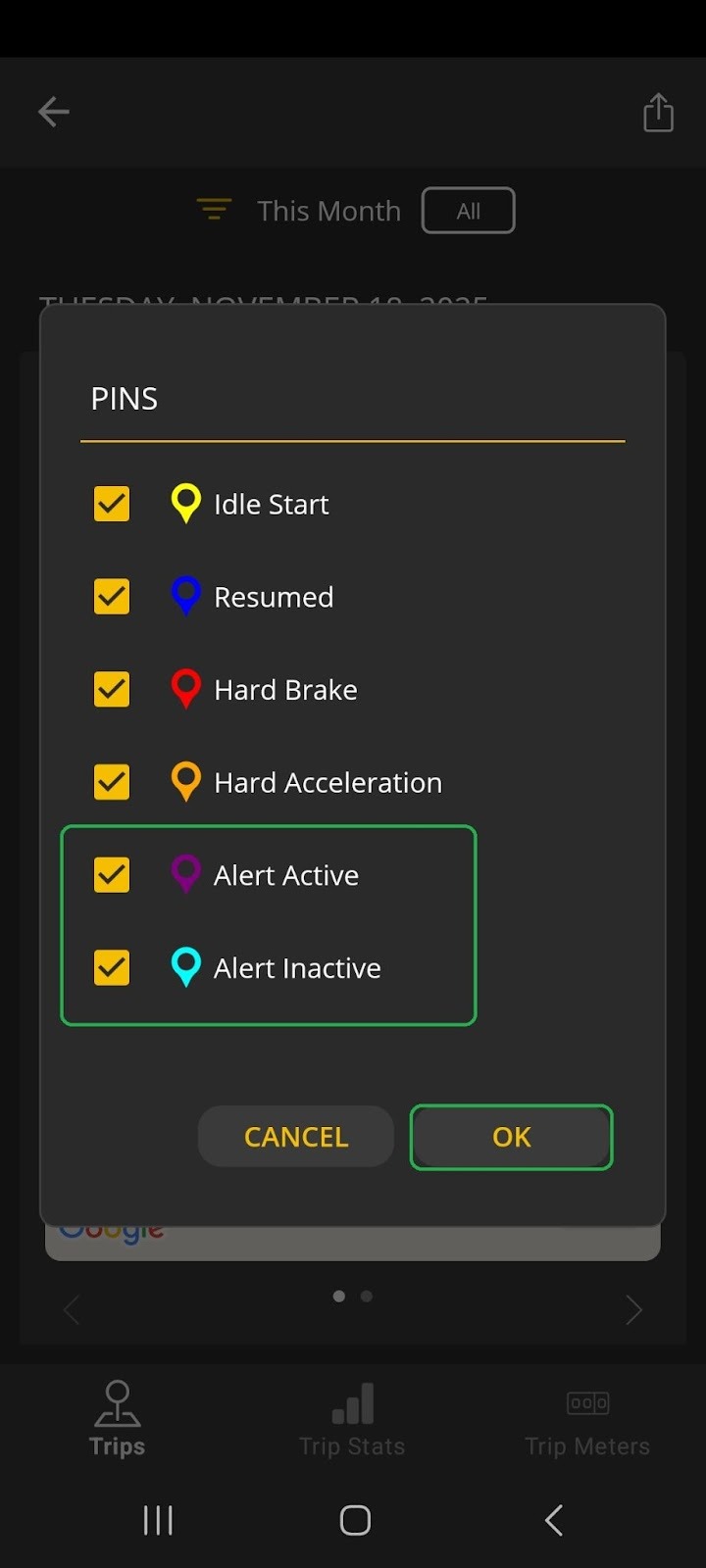
Tap the pin icon (highlighted) to open the Pins list.You will see a screen similar to the one below, showing various trip events tracked by the OBDLink app.
If you enabled an Alert with an Add a Trip Event action, and an alert action was triggered, then you will see alert events (highlighted) in the Pins list.
You can uncheck certain Pins to make the Map view less cluttered.
Note: The Alerts option was recently added to the OBDLink app. If you don't see this option, download the latest version of the OBDLink app from the App Store (iOS) or Google Play (Android).In our example, we unchecked all Pins except Alert Active and Alert Inactive, and tapped OK.
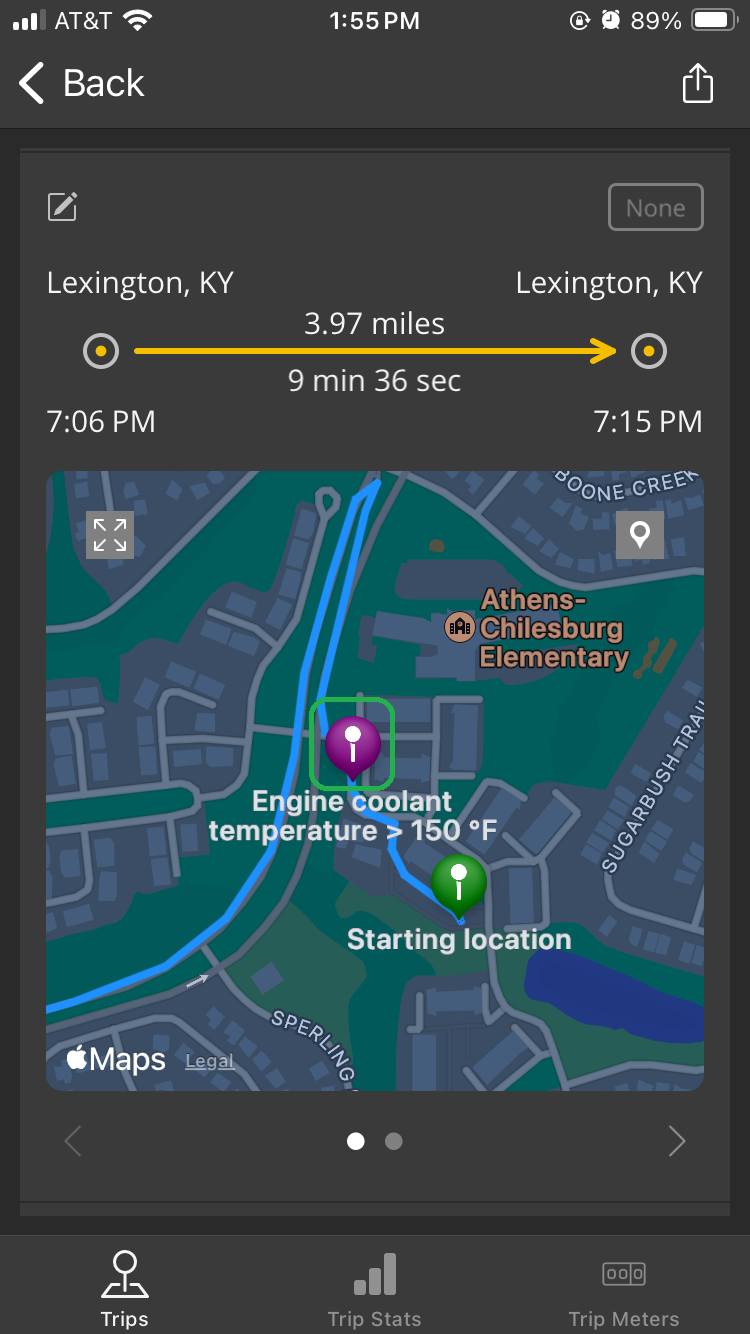
iOS: The Trip map display shows one purple pin (highlighted) indicating the location when the Alert became active. Tap the pin to display the Alert message.
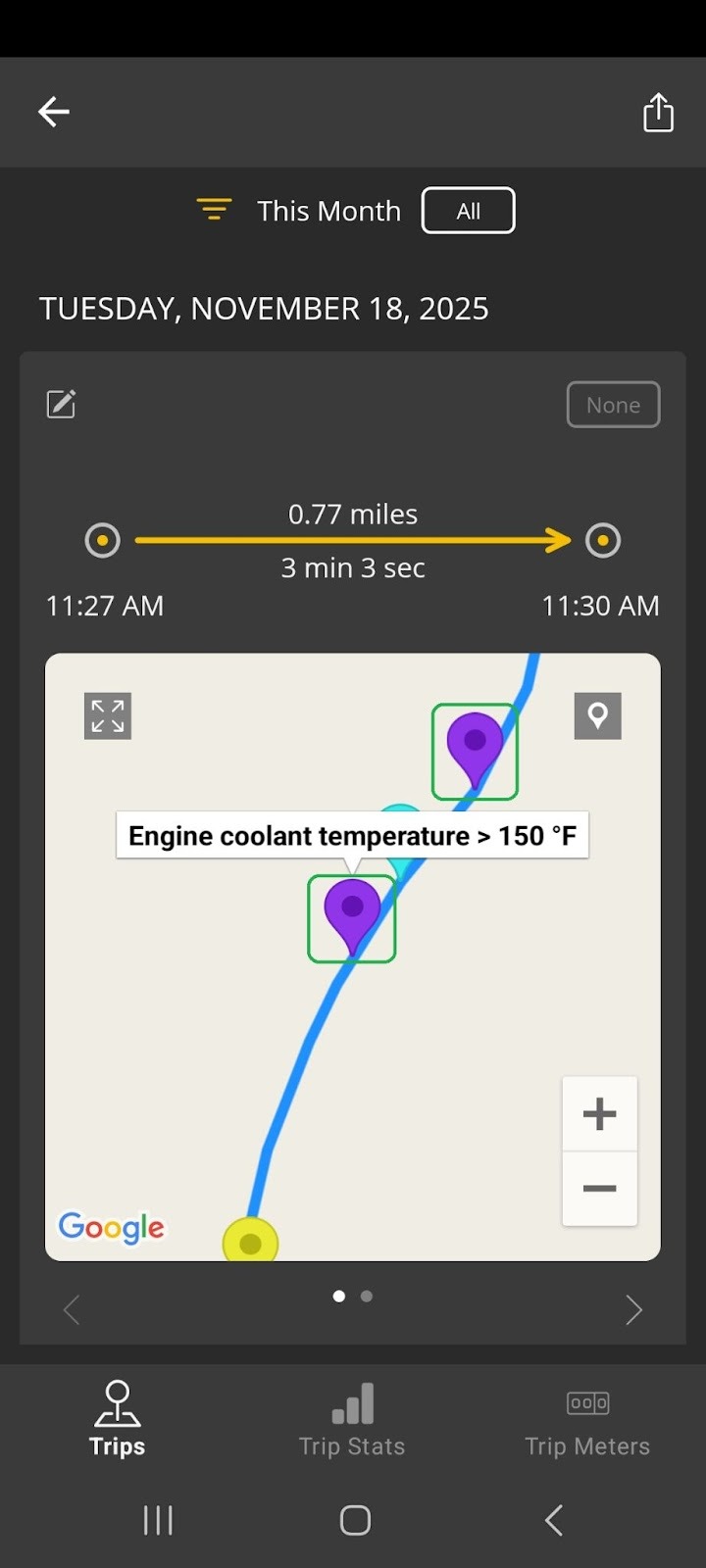
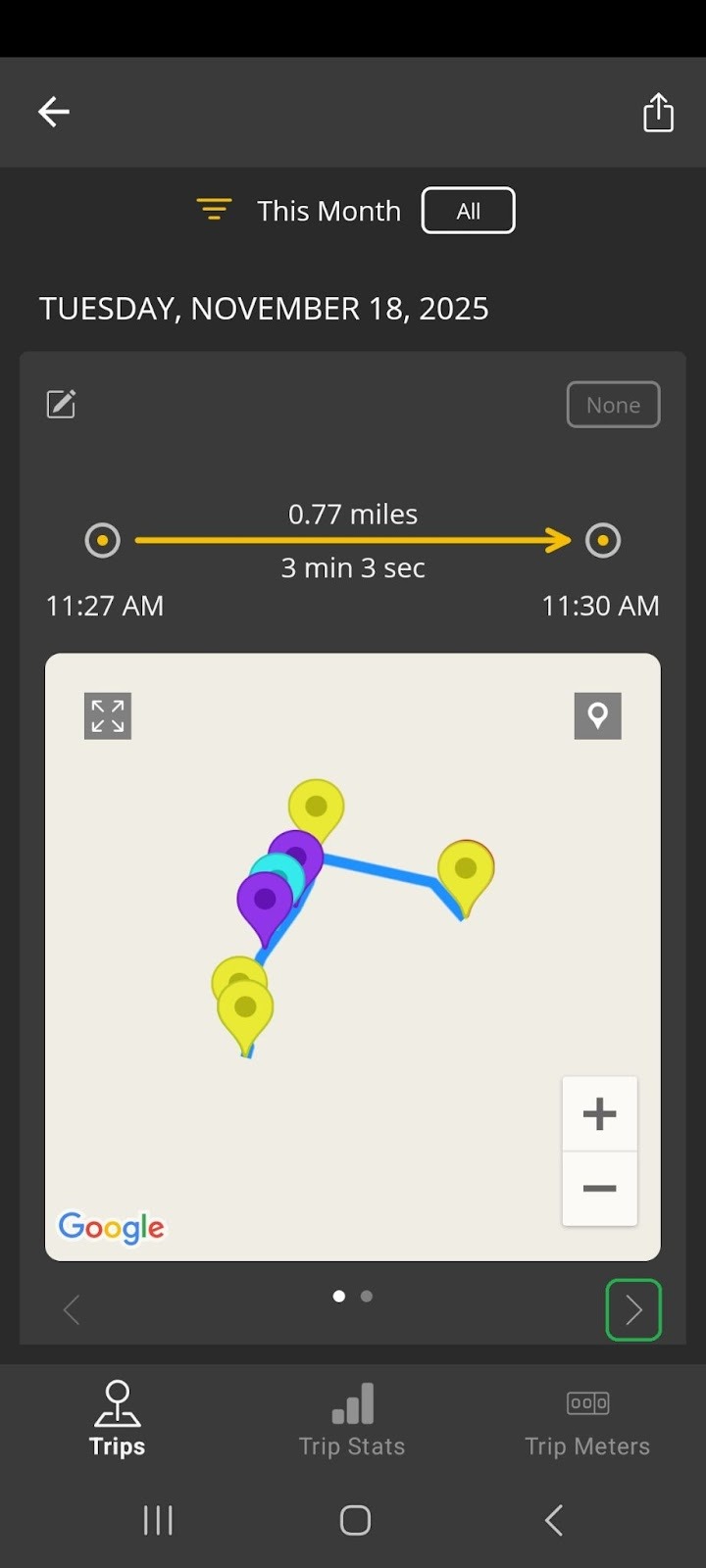
Android: The Trip map display shows two purple pins (highlighted) indicating the locations when the Alert became active. Tap the pin to display the Alert message.
Note: In our example, we set the alert to be active when the Engine Coolant Temperature is greater than 150 °F. We recommend that you add alerts for exceptional conditions and not for normal vehicle operation. This example is for demonstration only.
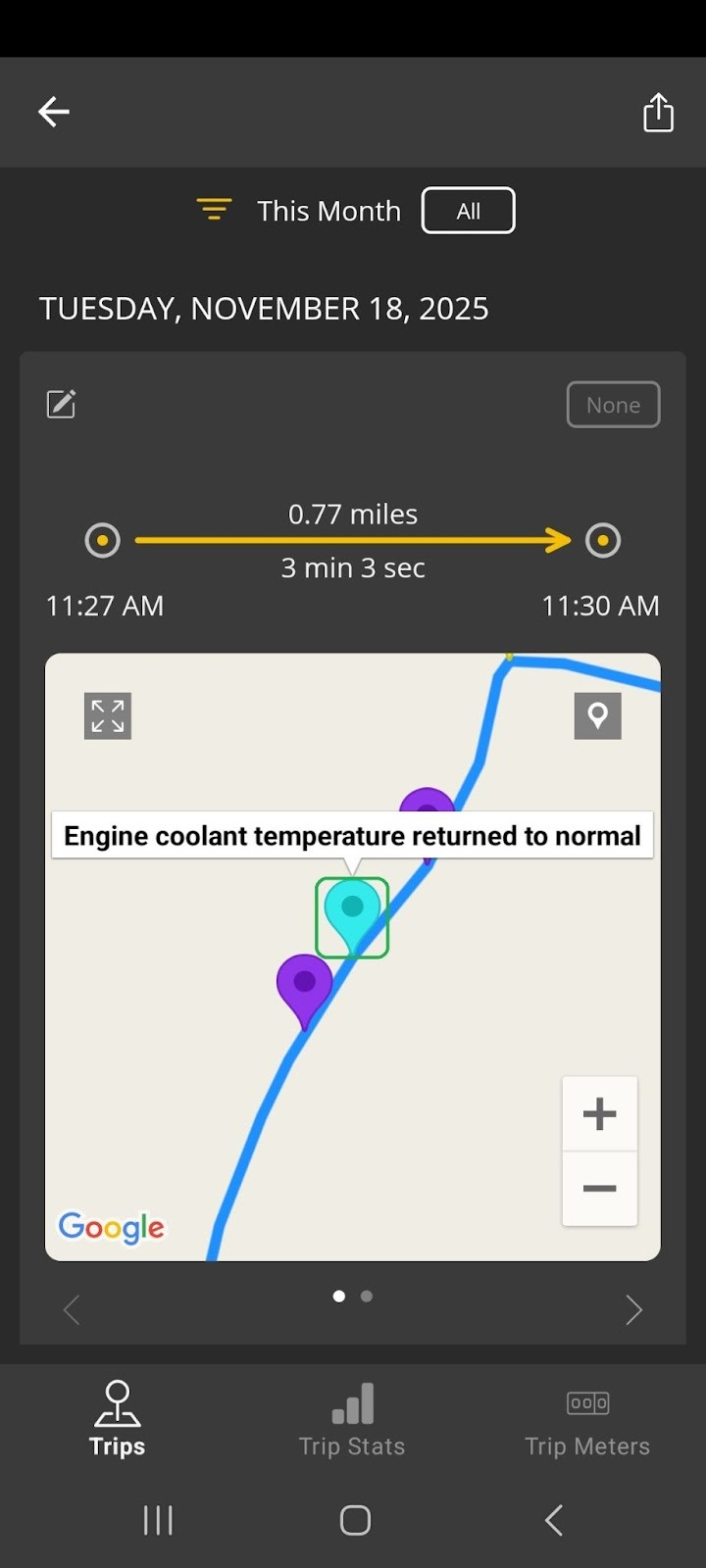
Android only: The Trip map display shows one light blue pin (highlighted) indicating the location when the Alert became inactive. Tap the pin to display the Alert message.
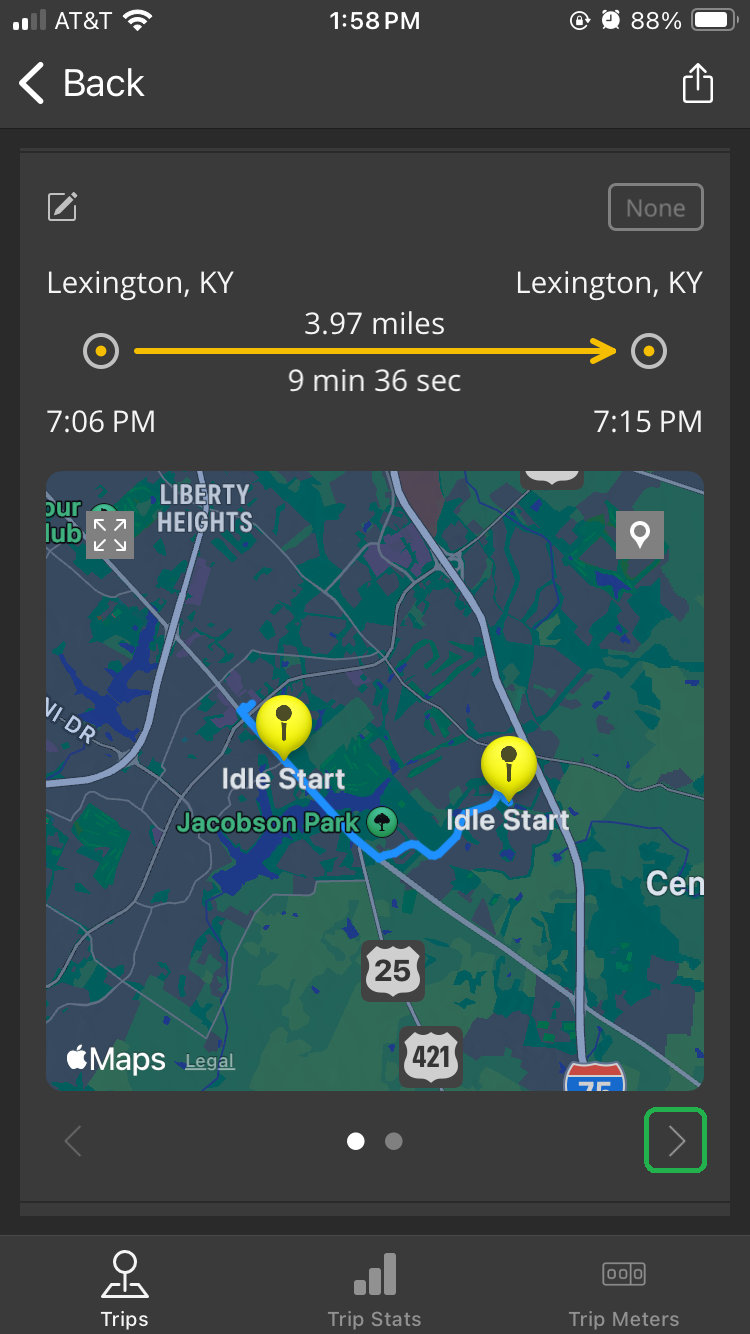
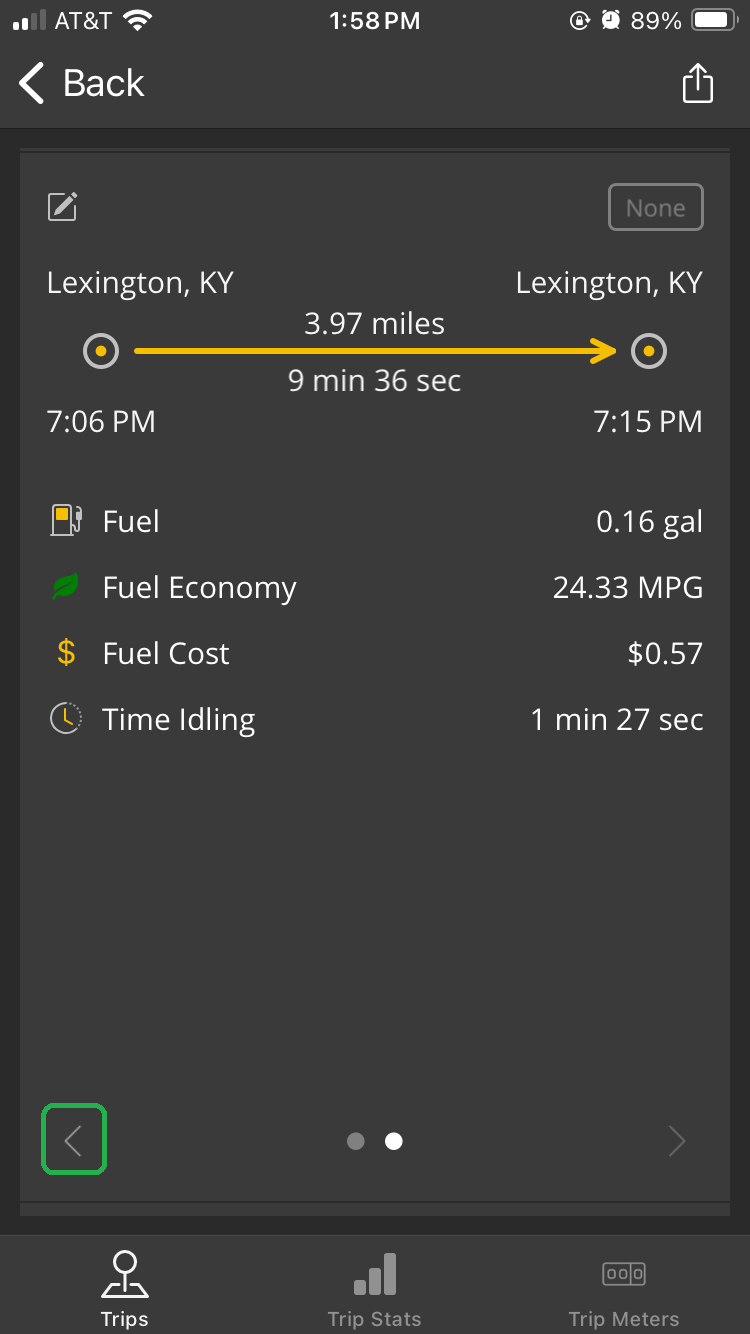
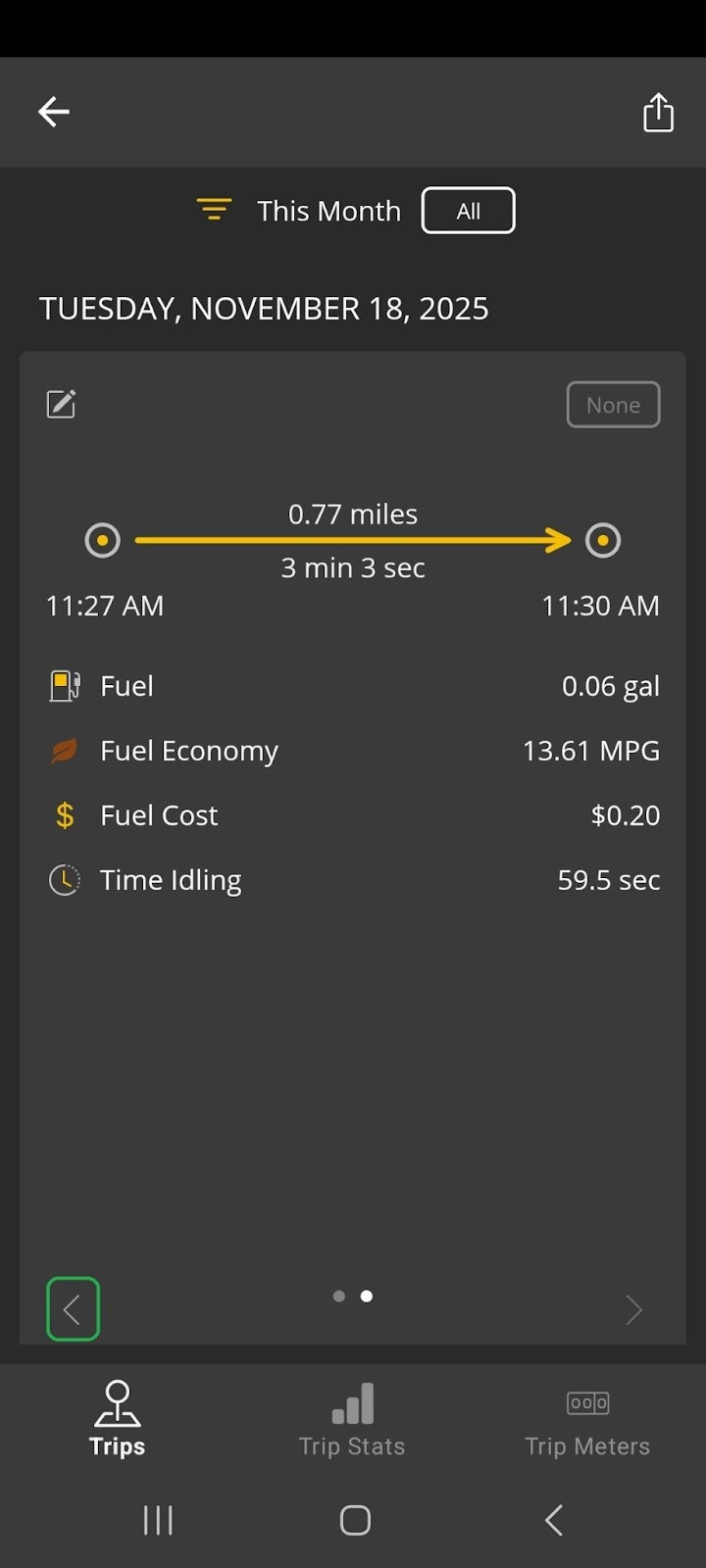
Tap the > arrow (highlighted) to display the second screen of trip details.
You will see additional trip details including fuel usage, fuel economy, fuel cost, and time idling.
Tap the < arrow (highlighted) to return to the map screen for the trip.
Tap the trip details area (highlighted) to return to the trips list.









Trip Stats
This tab shows logged information in graph format. You can review the data captured on prior trips by swiping right or left.
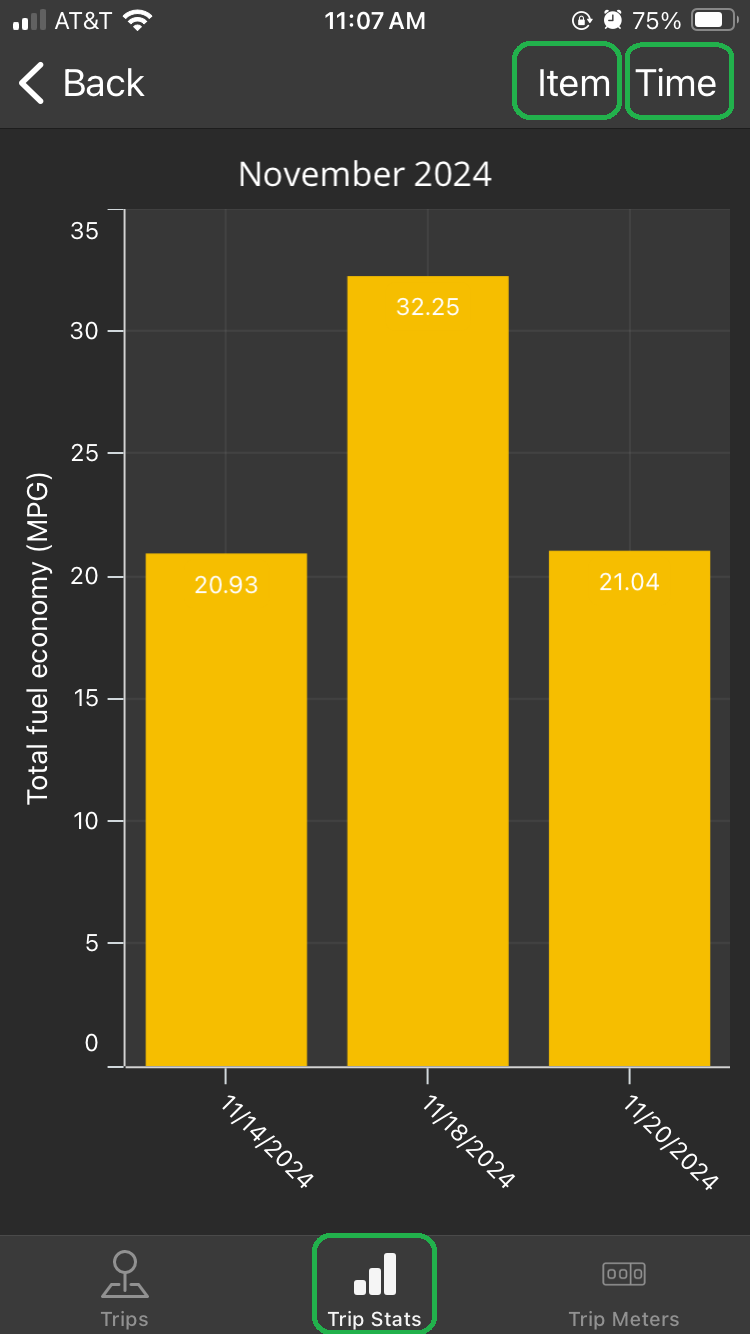

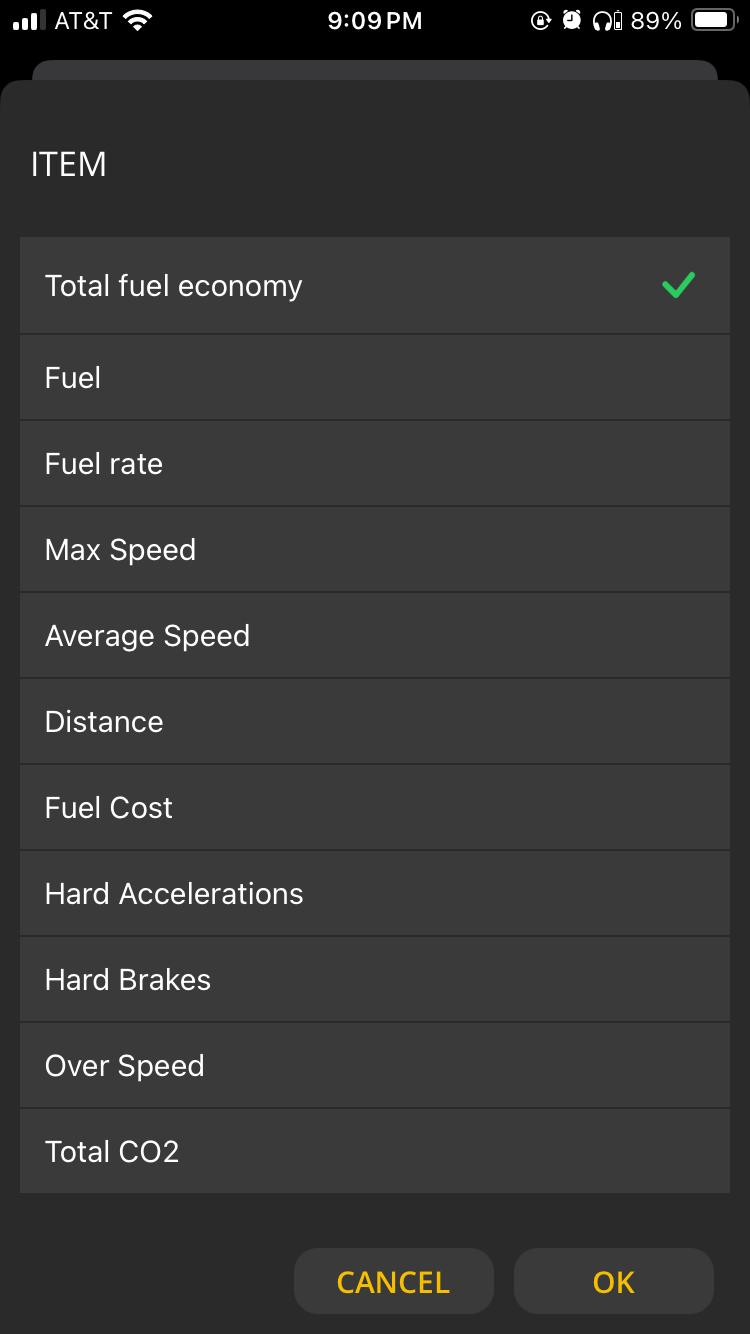
Tap Item in the upper right corner to change the vertical (Y) axis.
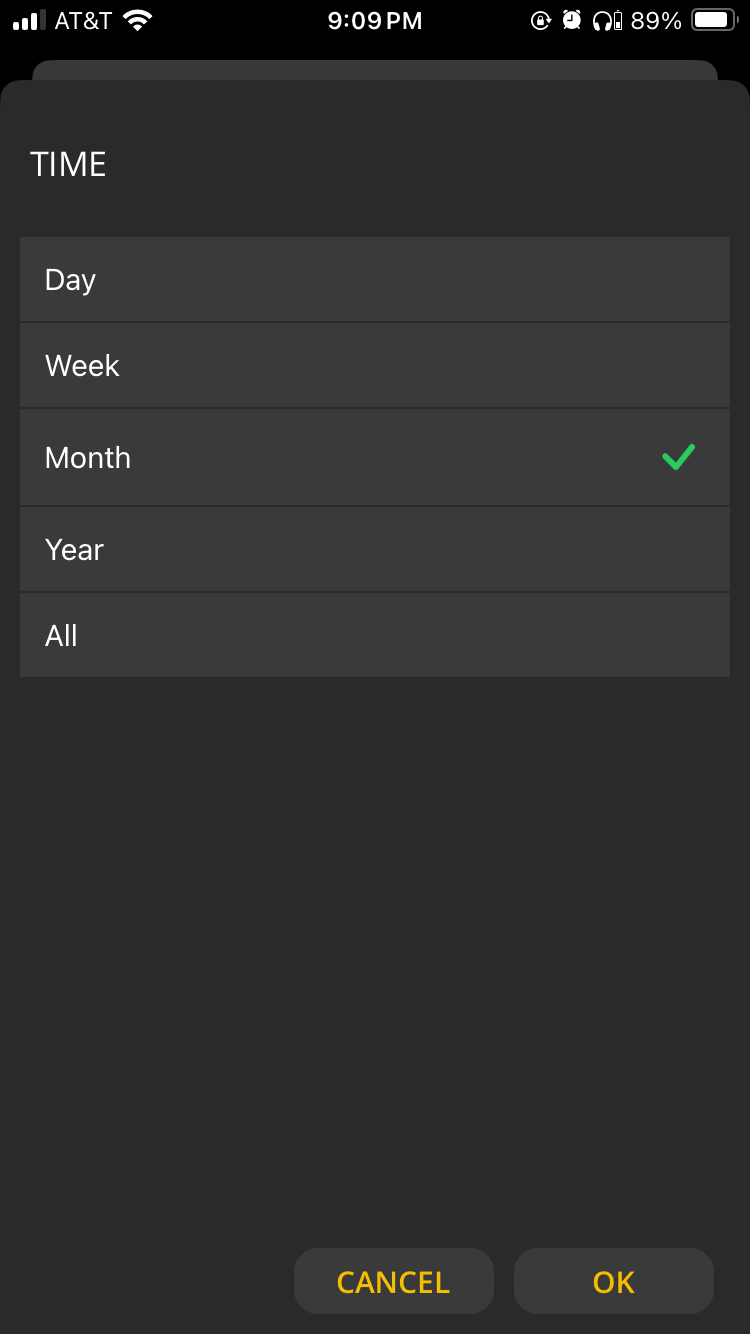
Tap Time in the upper right corner to change the horizontal (X) axis.
You can choose from a predefined list of Item values and Time settings as shown below. Tap to make your selection, then tap OK.
Trip Meters
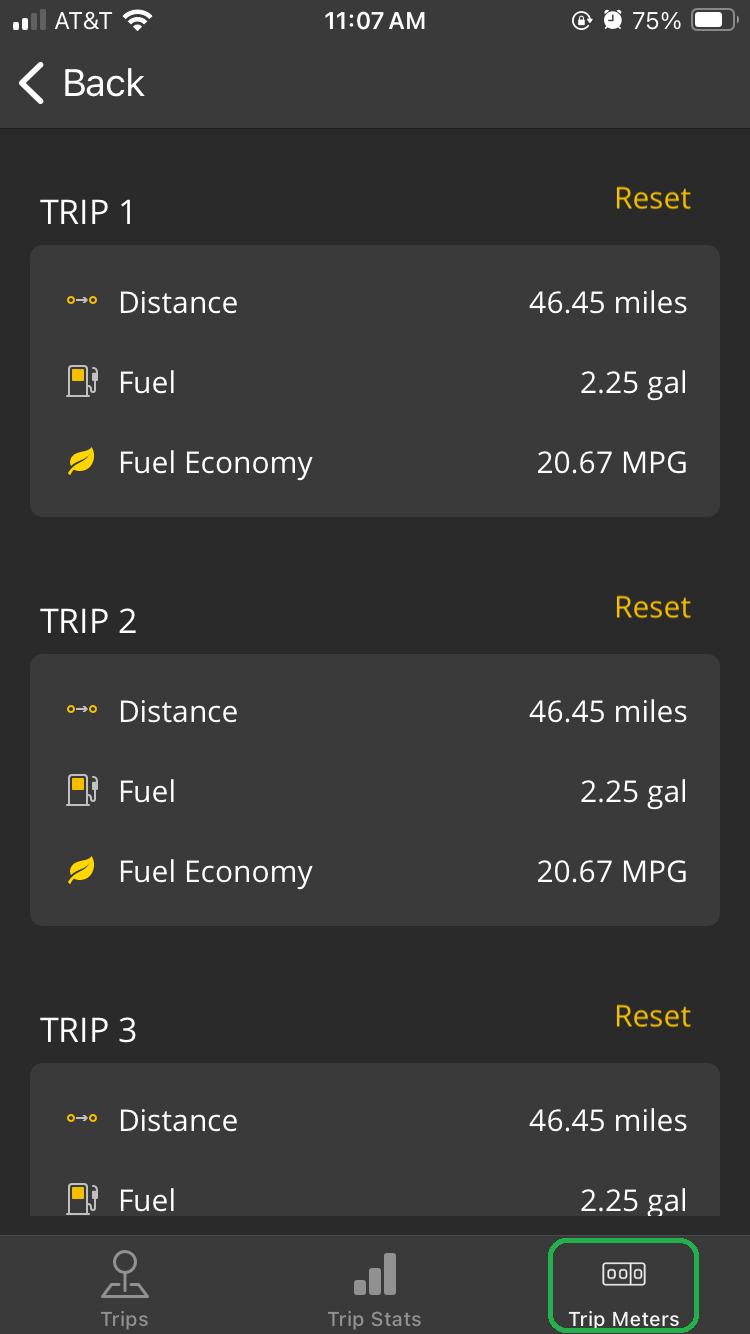
Every time the OBDLink app connects to your OBDLink adapter, it captures information. This screen shows basic trip information, similar to a trip counter that your vehicle may have. Tap Reset to reset a trip counter back to zero.

Learn more
- The Trips function in the OBDLink app is linked to the Logs function. Read more in the Get Started with Logs article.
- For step-by-step details on setting up OBDLink alerts, see the Configure Alerts for Vehicle PIDs article.
- You can explore other OBDLink features and functionality using our support article knowledge base.
- For descriptions of terms used in this article, see the Glossary of Acronyms and Terms.
Need more help?
OBDLink® is a registered trademark of OBD Solutions, LLC.